
Gemini 2026: Create and Edit PDFs, Slides Directly in Chat
Published:
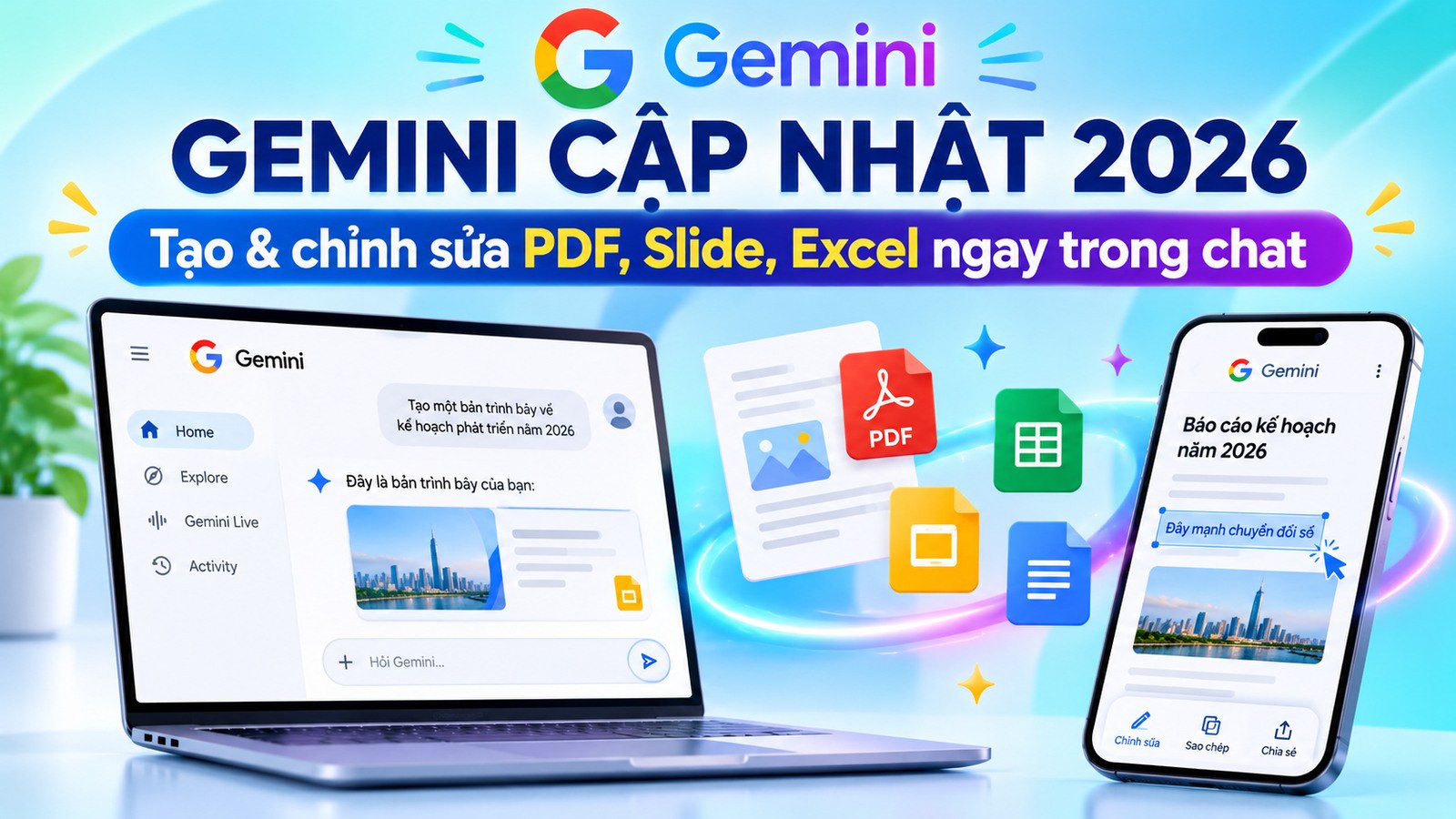
Google Gemini adds the ability to create and edit PDFs, slides, and spreadsheets directly in chat. Discover what's new and learn how to use it.
Gemini Update 2026: Create and Edit PDFs, Slides, and Spreadsheets Right in Chat
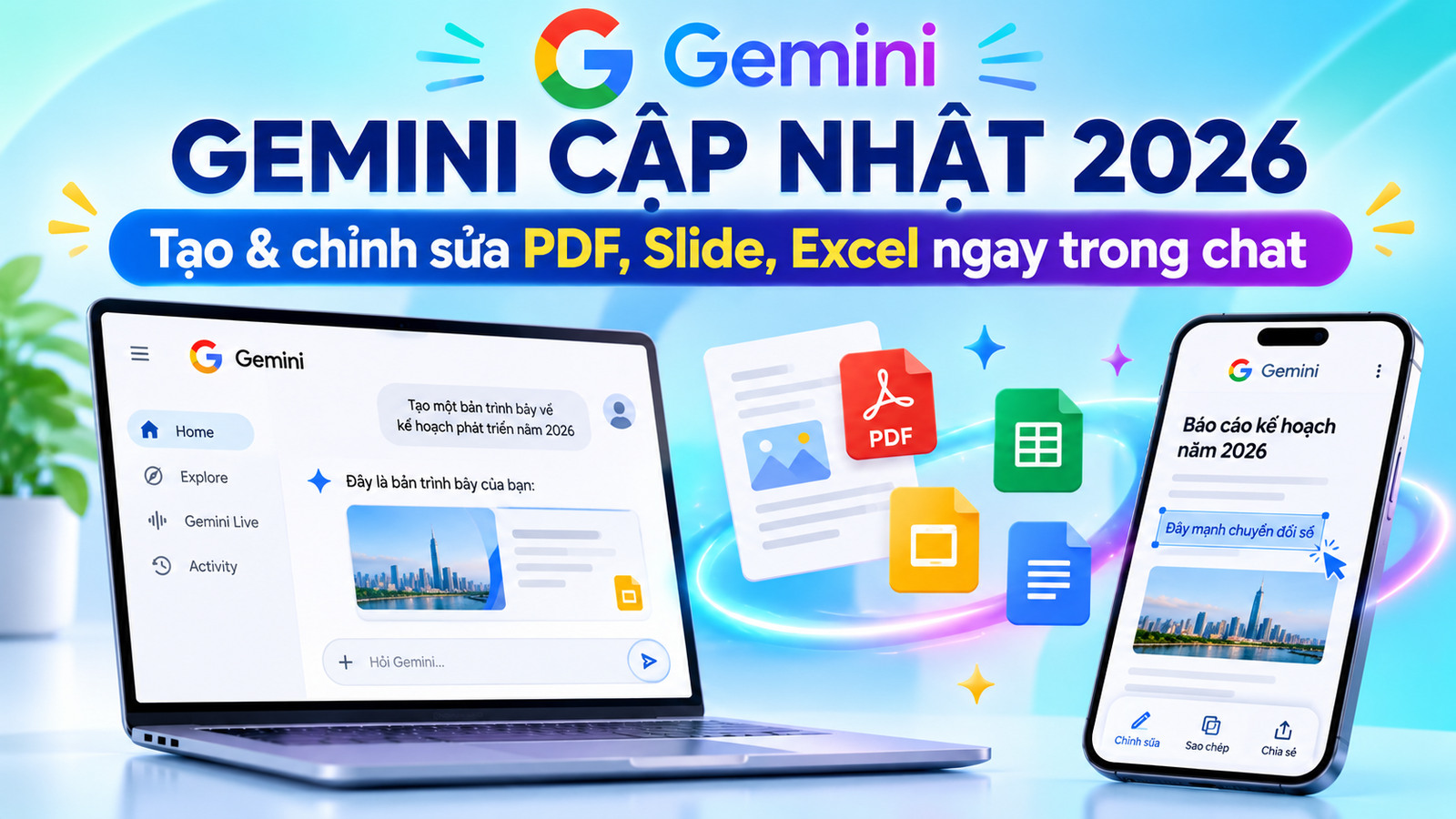
Google Gemini received a notable update on 29/10/2026, allowing users to create, preview, and edit PDF documents, presentations, spreadsheets, and other file formats directly in AI conversations. Rather than just receiving content as text and copying it into another application, users can view the document, select the content they want to change, and continue asking Gemini to edit it directly.
This is a useful improvement for students, teachers, office workers, and others who frequently use AI to process documents.
So What's new in the 2026 Gemini update? How do you use the feature to edit PDFs, slides, and spreadsheets? Let's take a look at ShareTaiKhoan Learn more in the article below.
Google Gemini Updates Its Ability to Work Directly with Documents
On 29/10/2026, Google announced the ability to create, preview, and edit files directly in the Gemini app.
Previously, a common workflow when using AI was to ask it to create content, copy the results, and then move them to other software for formatting and completion.
With the latest update, users can perform multiple actions directly in the Gemini chat interface.
Notable capabilities include:
Create and preview documents directly in chat.
Edit document content by entering text.
Select part of the content and ask the AI to change it.
Open the document in full-screen mode for easier use.
Continue asking Gemini to adjust the content or visual elements.
According to Google, the update is being made available to users in the regions and languages supported by the Gemini app.
Source: Google's official announcement on 29/10/2026.
Which document formats does Gemini support in 2026?
One of the notable highlights of the update is the ability to work with multiple file types in the same interface.
Format | New capabilities | Platform |
|---|---|---|
Create, preview, and edit | Web and mobile | |
Google Docs | Create, preview, and edit | Web |
Google Sheets | Create and edit spreadsheets | Web |
Presentation slides | Create, preview, and edit | Web |
Markdown, TXT | Create and edit content | Web |
Source code | Preview, edit | Web |
Google confirmed that PDFs can be previewed and edited on both the web and mobile devices. For the other formats mentioned in the announcement, the new feature is currently supported on the web.
Users should also distinguish Google Sheets from Microsoft Excel: support for working with Google Sheets spreadsheets does not mean that Gemini supports every operation or feature specific to Excel files.
What stands out about Gemini's direct PDF editing?
PDF is one of the most common formats in education and work. However, editing PDFs can sometimes be difficult because of layouts, tables, and other elements that are not easy to change.
The Gemini update makes the PDF workflow more flexible.
3.1. Create a PDF from a prompt
Users can ask Gemini to create a study document, plan, or guide based on the information they provide.
For example:
"Create a PDF guide to learning English in 30 days, including goals, daily exercises, and a progress tracking table."
Gemini can create a document draft for users to preview and continue refining.
3.2. Edit content in a PDF
Instead of asking Gemini to regenerate all the content, users can select the part they want to change and provide instructions.
For example:
"Shorten the introduction to 100 words, retain the main points, and use a professional tone."
This approach helps reduce manual copying and editing across multiple applications.
3.3. Turn notes into study materials
Google also provided an example of using handwritten lecture notes to create a PDF document for learning.
Once they have a document, users can edit the content, mark the parts they want changed, and continue asking AI for help.
This is a useful scenario for students who need to compile lecture notes, organize knowledge, and create study materials.
Gemini supports creating and editing presentation slides
Beyond PDFs, Gemini is also expanding its ability to work with presentations directly in the web chat interface.
Users can ask AI to build the content for a slide deck on a specific topic.
For example:
"Create an 8-slide presentation on trends in AI applications in marketing in 2026, including an introduction, the current landscape, common applications, real-world examples, and a conclusion."
After Gemini generates the content, users can preview it and request changes.
Some actions you can try include:
Shorten the content of each slide.
Change how the key points are presented.
Add an illustrative example.
Edit the selected heading or paragraph.
Adjust the content to suit the presentation audience.
However, AI does not guarantee that it will immediately create a slide deck that is complete in every respect. Users should still check the layout, content, images, and figures before presenting.
If you need more advanced image design, you can also refer to the article Canva AI Upgrades in 2026.
Create and edit spreadsheets with Gemini
Spreadsheets are an important tool for data analysis, task tracking, and planning.
With the ability to work directly with Google Sheets in Gemini on the web, users have another way to create and edit spreadsheet content using natural language requests.
For example:
"Create a 30-day content plan table for a fan page, including posting date, topic, platform, person responsible, and completion status."
Or:
"Create a monthly income and expense tracking table with columns for date, description, income, expenses, and notes."
Such requests can help users get a spreadsheet started more quickly instead of creating its structure from scratch.
However, users should check the results when working with data tables containing formulas, financial figures, or important operational data.
How to use Gemini's document editing feature
To try the latest update, users can follow these steps.
Step 1: Open Gemini
Open a browser and go to gemini.google.com. Sign in with a Google account.
Step 2: Enter a request to create a document
Clearly describe the type of document you want to create, its intended use, the content it should include, and how it should be presented.
For example:
"Create a PDF guide to using AI for beginners, about 3 pages long, with a title and clearly defined sections."
Step 3: Preview the document
When the interface for creating and previewing files appears, open the document to check the result.
Step 4: Continue editing
Users can enter edits directly, highlight the content they want to change, or ask Gemini to make adjustments through a conversation.
Step 5: Review and finalize
Review the content, cross-check the figures, check the formatting, and use the save or export options provided by the interface.
Note that the actual interface may vary by device and app version. For Docs, Sheets, and slides, use Gemini on the web to get the best experience with this update.
Who should use Gemini's new feature?
Students
Gemini can help summarize notes, develop learning materials, and create presentations.
Rather than just asking and answering questions, learners can create materials to read, revise, and improve further.
Teachers
Teachers can use Gemini to develop reference materials, outline lesson content, or prepare presentations.
However, subject-matter knowledge, figures, and teaching content should be checked before official use.
Office workers
Tasks such as planning, writing reports, preparing slides, and creating tracking tables can be supported by Gemini's direct document creation feature.
Marketers
Content creators and marketing staff can use Gemini to develop content plans, draft campaign reports, and prepare presentation materials.
If you want to explore more applications, you can read the article 7 AI tools to support students and teachers on ShareTaiKhoan.
Can Gemini's free version use the new feature?
This is a question many people are asking following Google's announcement of the update.
According to the announcement on 29/10/2026, the ability to create, preview, and edit documents directly in Gemini has been made available to all users in the regions and languages supported by Gemini.
This means that Users do not necessarily need to subscribe to a paid plan just to use the document editing features announced in this update.
However, free accounts and paid plans may still differ in model access, usage limits, and other features.
Therefore, before upgrading, users should consider their actual needs rather than assume that every new feature requires a paid plan.
Should you upgrade to Gemini Pro in 2026?
Gemini continues to expand its capabilities for learning, information processing, and content creation. However, not everyone needs a paid plan.
If you only use AI for Q&A, creating basic documents, or trying out new features, you can start with a free account.
If you use Gemini regularly for advanced tasks and need the additional features and limits of a paid plan, upgrading may be worth considering.
At ShareTaiKhoan", users can explore Gemini Pro service options with different subscription durations, account delivery methods, and prices.
Before choosing, carefully check the account management rights, number of users, support policies, warranty conditions, and compatibility with Google's terms.
In particular, avoid putting confidential documents, customer data, or sensitive personal information into shared accounts.
Reference: Gemini Pro – Plans at ShareTaiKhoan.
ShareTaiKhoan is an independent service provider, not the publisher of Gemini.
Frequently Asked Questions
Can Gemini edit PDFs directly?
Yes. According to Google's update on 29/10/2026, users can preview and edit PDFs directly in Gemini on the web and on supported mobile devices.
Can Gemini create PowerPoint slides?
Gemini supports creating and editing presentations directly on the web. However, users should check whether the files can be exported to or are compatible with the specific PowerPoint format they need before using them.
Can Gemini edit Excel spreadsheets?
Google's update confirms support for Google Sheets on the web. This does not guarantee that every Microsoft Excel file or advanced feature is fully supported.
Do I need to buy Gemini Pro to use this feature?
Not necessarily. Google announced that document creation, preview, and editing capabilities are available to all users in regions where Gemini is supported. Other benefits and limits still depend on the account plan.
Can Gemini completely replace Word, Excel, and PowerPoint?
This cannot be confirmed. Gemini supports creating and editing content with AI, but specialized software remains useful for complex formatting, advanced formulas, and collaborative work.
Conclusion
The Gemini update on 29/10/2026 shows that Google is expanding the AI experience beyond regular question-and-answer interactions to include creating and editing documents directly in the conversation.
The ability to work with PDFs, documents, slides, and spreadsheets can reduce the need to switch between multiple apps, especially for learning and office work.
However, users should still check the accuracy, formatting, and security of information before using AI-assisted documents.
Want to learn about Gemini Pro options?
Explore Gemini Pro at ShareTaiKhoan to view package information, usage options, and support policies before deciding.
Account Sharing | ShareTaiKhoan
Website: https://sharetaikhoan.com.vn
Zalo/WhatsApp: +84 337 018 337
References: Google Blog – You can now generate, preview, and edit documents, PDFs, presentations, spreadsheets, and more directly in Gemini", dated 29/10/2026.
(0 ratings - 0/5)
Buy affordable accounts at ShareTaiKhoan
Related products


Other articles
- What Is New in Suno v6? Models, Studio 2.0 and Plans for 2026
- When Is Black Friday 2026? Sale Schedule & Shopping Tips
- Is Gemma 5 Coming Soon? Google Makes AI 2.85 Times Faster
- Is Meta Muse Free? Plans and Terms of Use
- What is Udemy Business? A corporate training platform
- What is QuillBot? A guide to using QuillBot from A–Z
- What Is TurboScribe? How to Convert Audio, Video to Text
Comments (0)
Sign in or register to comment.
No comments yet.