
What Is TurboScribe? How to Convert Audio, Video to Text
Published:
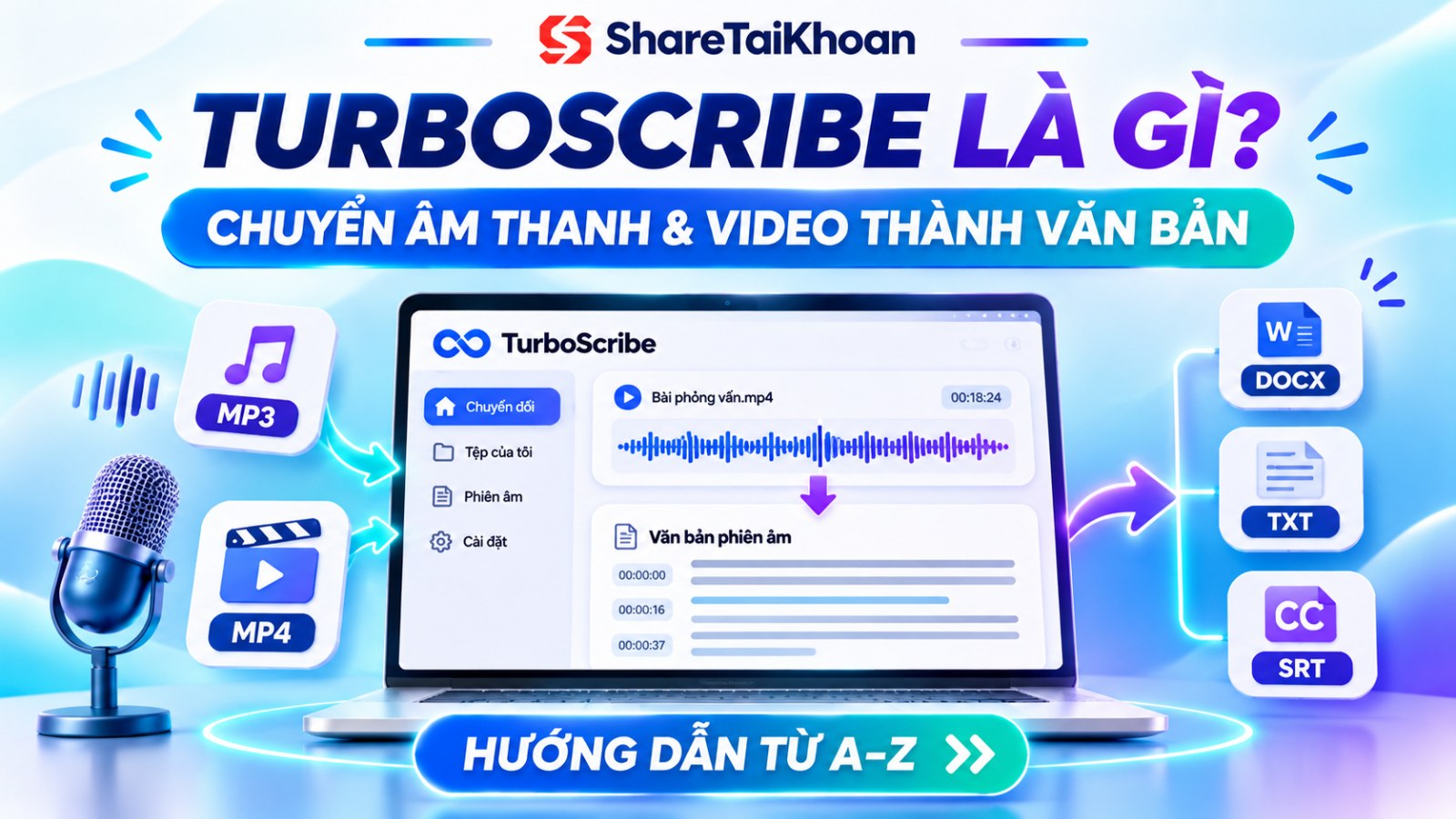
TurboScribe AI quickly converts recordings, videos, lectures, and meetings into text, supports Vietnamese, and exports to Word, PDF, and SRT. Discover how to use it from A to Z.
What Is TurboScribe? An A–Z Guide to Converting Audio and Video into Text
TurboScribe is an artificial intelligence (AI) tool that automatically converts audio and video into text.", supports multiple formats such as MP3, MP4, WAV, M4A, and MOV. With speech recognition technology, users can turn meetings, lectures, interviews, podcasts, and videos into text without having to listen and type out every sentence.
In addition to supporting Vietnamese transcription, TurboScribe can identify speakers, translate transcripts, and export content in formats such as Word (DOCX), PDF, TXT, SRT, or VTT.
So What is TurboScribe, is it free, and how do you use it to convert audio and video into text?
Let's ShareTaiKhoan Learn more in the article below.
What Is TurboScribe?
TurboScribe is an online speech-to-text platform that uses Whisper speech recognition technology to process audio and video files.
Instead of listening to a recording that lasts for hours and manually retyping its contents, users simply upload the file to TurboScribe, set the language, and ask the AI to transcribe it.
The tool can recognize speech, convert it to text, and let you download the results for further editing.
Common uses for TurboScribe include:
Turn audio recordings into text.
Turn MP4 videos into text.
Transcribing lectures and meetings.
Turn interviews into Word documents.
Create subtitles for a video automatically.
Extract dialogue from a podcast.
Identify and distinguish between multiple speakers.
Translate the transcript into another language.
According to information published on its website, TurboScribe supports more than 98 languages and advertises accuracy of up to 99.8% under suitable conditions.
However, actual accuracy depends on audio quality, regional accents, background noise, and the nature of the content.
Official website: https://turboscribe.ai
Key Features of TurboScribe AI
2.1. Automatically Transcribing Audio
TurboScribe supports many common audio formats, including:
MP3
WAV
M4A
AAC
OGG
OPUS
WMA
You can upload an audio recording from your phone or computer and turn it into text.
For example, a student with a 25-minute lecture recording can use TurboScribe to create a transcript, then review it, take notes, or summarize the content.
2.2. Transcribing Video
In addition to audio, TurboScribe also supports video formats such as MP4, MOV, MPEG, and WMV.
The tool processes the audio in a video and creates a corresponding transcript.
This is a useful feature for people making YouTube or TikTok videos, or interview videos.
For example, if you have a 15-minute video and want to turn its dialogue into a blog post, TurboScribe can help create a transcript for you to edit further.
2.3. Recognizing Multiple Speakers (Speaker Recognition)
TurboScribe supports identifying and separating content by speaker.
For example, a meeting with three participants can be divided into sections corresponding to different speakers.
This feature is suitable for:
Interviews with multiple people.
Group meetings.
Podcasts with multiple guests.
Workshops and panel discussions.
Research discussions.
However, AI may confuse speakers, especially when several people speak at the same time or the audio is unclear.
2.4. Creating SRT and VTT Subtitles
SRT and VTT are two common subtitle formats used in video production.
TurboScribe can export transcripts as subtitle files with timestamps.
Users can import these files into compatible video editing software, such as CapCut or Premiere Pro.
This helps content creators spend less time entering subtitles manually.
2.5. Translating Transcribed Content
TurboScribe supports translating transcripts into more than 134 languages on plans with the appropriate access.
For example, you can transcribe an English interview and then translate the transcript into Vietnamese for reference.
However, the translated content still needs to be reviewed, especially when it contains specialized terminology or audio that can be interpreted in different ways.
How to Use TurboScribe to Transcribe Audio
Here is a basic workflow for beginners.
Step 1: Visit TurboScribe
Open a browser and go to:
Sign up or log in if prompted by the interface.
You can start with the free version before deciding whether to upgrade.
Step 2: Upload the audio file
In the conversion interface, select Browse Files or drag and drop the file into the upload area.
TurboScribe supports formats such as MP3, WAV, M4A, and many other common formats.
For example, if you have a file ghi-am-cuoc-hop.mp3", select that file to upload it to the system.
Step 3: Select the audio language
Find the section Audio Language.
If the audio file is in Vietnamese, select Vietnamese.
If the file is in English, select English.
Selecting the correct language can help the system recognize speech more accurately.
Step 4: Choose a transcription mode
TurboScribe offers three main modes:
Mode | Features |
|---|---|
Cheetah | Prioritize speed |
Dolphin | Balance speed and quality |
Whale | Prioritize accuracy |
If you need to quickly transcribe a clear recording, you can try Cheetah or Dolphin.
For important documents or recordings with complex content, Whale is a mode worth considering if your current plan supports it.
Step 5: Configure additional options
In the section Speaker Recognition & More Settings", you can enable speaker recognition.
If the file contains multiple speakers, set the number of speakers based on the information you have.
TurboScribe also offers a Restore Audio option to help process poor-quality audio. The developer recommends using it only when necessary, as reprocessing the audio does not always improve the results.
Step 6: Click Transcribe
Once setup is complete, click Transcribe.
TurboScribe will process the file using AI and display the transcript when it is ready.
Processing time depends on the file length, transcription mode, and priority level of the account plan.
Step 7: Review and edit the text
Once you have the results, reread the text and compare it with the original audio.
In particular, check:
Proper names and place names.
Specialized terminology.
Numbers and amounts of money.
Instances where multiple people speak at once.
Punctuation and paragraph breaks.
This review is very important if the content will be used as an official document.
Step 8: Export the text
Choose your preferred download format.
You can export to Word, PDF, TXT, or supported subtitle formats.
How to Transcribe MP4 Videos with TurboScribe
Besides recordings, you can also use TurboScribe to extract speech from videos.
The process is as follows:
Step 1: Prepare an MP4 or MOV video file.
Step 2: Go to TurboScribe and select Upload file.
Step 3: Select the language used in the video.
Step 4: Choose a suitable transcription mode.
Step 5: Enable speaker recognition if multiple people are participating.
Step 6: Click Transcribe and review the results.
Step 7: Download the transcript as a Word or TXT file.
For example, a YouTuber can turn a 20-minute tutorial video into text, then use it to write a video description, develop a script, or create a blog post.
If you transcribe someone else’s video, you need to pay attention to content usage rights and copyright.
How to Create SRT Subtitles with TurboScribe
This is one of the useful applications for content creators.
Step 1: Prepare the video
Choose a video with clear audio, little background noise, and easy-to-hear speech.
Step 2: Upload the video to TurboScribe
Use the file upload tool and select the correct language.
Step 3: Start transcription
Wait for the system to generate a transcript with timestamps.
Step 4: Review the transcript
Review the sentences, correct recognition errors, and check proper names.
Step 5: Export the SRT file
In the data export section, select the SRT format.
This file contains the subtitle text and the timestamps for when it appears in the video.
Step 6: Import it into editing software
Open CapCut or a video editing program that supports SRT import.
Import the subtitle file, check the display timing, and adjust the subtitle font, color, or position.
Some software versions may differ in their support for importing SRT files, so check compatibility before proceeding.
Read more: Guide to editing videos with CapCut for TikTok and Reels on ShareTaiKhoan.
Can TurboScribe Transcribe Vietnamese?
Yes. TurboScribe supports Vietnamese speech recognition and lets you select Vietnamese under audio language.
You can use this tool to:
Transcribing meetings in Vietnamese.
Turn lectures into text.
Record interview content.
Transcribe Vietnamese podcasts.
Create Vietnamese subtitles for a video.
Turn recorded ideas into a draft.
However, Vietnamese has many regional accents, homophones, and tones.
Therefore, AI may misrecognize some words, especially when the speaker talks quickly or quietly, or there is background noise.
Tips for improving accuracy:
Use an audio file with good sound quality, select the correct language, minimize background noise, and review the transcript when it is finished.
Is TurboScribe Free or Paid?
TurboScribe currently offers a free version and the TurboScribe Unlimited plan.
According to the official price list checked on 13/11/2026:
Criteria | TurboScribe Free | TurboScribe Unlimited |
|---|---|---|
Price | Free | $20/month |
Annual plan | Not applicable | $120/year |
Number of transcriptions | 3 files/day | Unlimited transcription for one person |
Duration per file | Up to 30 minutes | Up to 10 hours |
File size | According to the free-tier limits | Up to 5 GB/file |
Number of files uploaded at once | 1 | Up to 50 |
Transcription mode | According to the free plan’s benefits | All modes |
Translate the transcript | Limits by plan | Supports more than 134 languages |
Processing priority | Lower | Highest |
Note: The advertised price of 10 USD/month for Unlimited is the monthly equivalent when paying 120 USD for the full year. If you subscribe and pay month to month, the listed price is 20 USD/month.
When is the free version enough?
The free plan is suitable if you only have a few short audio files to transcribe each day.
For example, a student who needs to transcribe a 15-minute interview can try the Free plan without signing up for a paid plan.
When should you upgrade to Unlimited?
The Unlimited plan is a better fit if you:
Transcribe multiple files regularly.
Processing long meetings or lectures.
Produce podcasts and videos professionally.
Need to upload multiple files at once.
Want to use advanced features.
Need higher processing priority.
However, having no limit on the number of transcriptions does not mean the service has no rules or usage policies.
View the official pricing table: https://turboscribe.ai
Is TurboScribe Accurate? Factors That Affect the Results
TurboScribe advertises transcription accuracy of up to 99,8%.
This is information published by the developer, not an accuracy level guaranteed for every recording.
In practice, the results may be affected by:
Audio quality: Files with very quiet audio or a lot of background noise are usually harder to process.
Local accents: Regional accents can lead to errors.
Multiple people speaking at once: AI may attribute content to the wrong speaker.
Specialized terminology: Drug names, technology names, proper names, or product codes may be transcribed incorrectly.
Mixed languages: Conversations involving multiple languages may require careful review.
Therefore, important recordings should still be reviewed by a person before they are published.
Comparing TurboScribe with Otter.ai and ChatGPT
TurboScribe is not the only AI tool that supports audio processing.
Criteria | TurboScribe | ChatGPT | |
|---|---|---|---|
Turn audio files into text | Specialized | Yes | Depending on the feature and plan |
Turn videos into text | Yes | Related feature available | Depending on the supported tool |
Vietnamese transcription | Yes | Check current support | Depending on the feature |
Identify multiple speakers | Yes | Yes | Depending on the mode |
Create SRT subtitles | Yes | Not a main strength | Not a specialized function |
Processing meetings | From an uploaded recording | Focused on taking meeting notes | May support summarization or analysis |
Rewrite and analyze the content | Not the focus | Related tool available | Strengths |
TurboScribe suitable for converting existing audio and video files into text or subtitles.
Otter.ai better suited to note-taking and meeting management workflows that use supported languages.
ChatGPT suitable when you need to process an existing transcript, such as summarizing a meeting, preparing minutes, identifying action items, or turning the content into an article.
An effective workflow is to use TurboScribe to create a transcript, review the content, and then use ChatGPT to edit and summarize it.
See also: A beginner’s guide to using ChatGPT effectively on ShareTaiKhoan.
Practical Applications of TurboScribe
Students and postgraduate students
TurboScribe can help transcribe lectures, research interviews, and group discussions.
For example, students conducting qualitative research can use the tool to create a preliminary transcript, then compare it with the original recording before coding the data.
Office workers
Employees can turn meeting recordings into text, then summarize the content and prepare minutes.
However, important decisions and task assignments should be reviewed.
Journalists and interviewers
TurboScribe supports creating transcripts of interviews conducted with participants’ consent.
Journalists still need to check quotes against the recording before publication.
YouTubers and TikTokers
Video creators can generate subtitles, extract dialogue, write descriptions, or turn long videos into blog content.
Podcasters
Podcasters can use transcripts to create episode notes, develop social media content, and make their content more accessible.
Things to Keep in Mind When Using TurboScribe AI
Data security
Before uploading files to an AI service, you should check usage rights, data policies, and your organization’s security requirements.
Do not upload confidential meetings, sensitive customer information, or research data that has not been approved for processing on an external platform.
Consent to recording
For interviews and meetings, make sure that recording and processing the content comply with the law and that any necessary consent has been obtained.
Review the text before use
AI transcripts may get people’s names, numbers, or terminology wrong.
In particular, when using it for meeting minutes, legal documents, or research reports, compare the content with the original.
Don’t confuse transcription with summarization
Transcription is the conversion of speech into text.
Summarizing means extracting the main points from a transcript.
TurboScribe focuses on transcription, while summarizing or rewriting can be done with another suitable tool.
Frequently Asked Questions About TurboScribe
Is TurboScribe free?
Yes. The Free plan allows up to 3 files to be transcribed per day, each no longer than 30 minutes.
Does TurboScribe support Vietnamese?
Yes. Users can select Vietnamese to transcribe Vietnamese recordings.
Can TurboScribe convert MP3 to Word?
Yes. TurboScribe supports converting audio to text and exporting DOCX files that can be opened in Microsoft Word or a compatible application.
Can TurboScribe convert MP4 to text?
Yes. The tool supports common video formats, including MP4 and MOV.
Can TurboScribe create SRT subtitles?
Yes. Users can export transcripts in SRT or VTT format for use in compatible video editing software.
Can TurboScribe transcribe recordings that are several hours long?
Yes, with an eligible plan. The Unlimited plan supports files up to 10 hours long and 5 GB in size.
Can TurboScribe translate English into Vietnamese?
Transcripts may be translated into supported languages. Usage rights and limits depend on the subscription plan.
Can TurboScribe completely replace a human transcriber?
Not entirely. AI helps reduce manual data entry, but documents that require a high degree of accuracy still need to be reviewed by a person.
Conclusion: Should You Use TurboScribe?
TurboScribe is an AI tool worth considering if you regularly need to convert audio and video into text.
With support for Vietnamese, speaker recognition, Word export, and SRT subtitle creation, TurboScribe has many uses in education, office work, research, and video production.
If you only need to transcribe a few short files, you can start with the free version.
If you regularly work with videos or long recordings, the Unlimited plan offers a higher usage limit and additional features.
The important thing is to choose the right plan, check the accuracy, and protect your data before using it.
Explore AI tools at ShareTaiKhoan
If you’re looking for AI services to help with work, speech-to-text conversion, content writing, or video processing, you can learn more at ShareTaiKhoan.
Website: https://sharetaikhoan.com.vn
Zalo/WhatsApp: +84 337 018 337
Account Sharing | ShareTaiKhoan
ShareTaiKhoan is an independent service provider, not the developer of TurboScribe or an official agent confirmed by TurboScribe.
References:
TurboScribe – https://turboscribe.ai
TurboScribe – Transcribe Audio and Video to Text: https://turboscribe.ai/l/transcribe-audio-and-video-to-text
TurboScribe – Free Audio & Video Transcription: https://turboscribe.ai/free-tools
TurboScribe – Convert Audio and Video to Text: https://turboscribe.ai/l/convert-audio-and-video-to-text
Updated 13/11/2026. Prices and features may change according to the publisher’s policies.
(0 ratings - 0/5)
Buy affordable accounts at ShareTaiKhoan

Related products




Other articles
- Otter AI vs TurboScribe 2026: Which Tool Should You Choose?
- What Is New in Suno v6? Models, Studio 2.0 and Plans for 2026
- When Is Black Friday 2026? Sale Schedule & Shopping Tips
- Is Gemma 5 Coming Soon? Google Makes AI 2.85 Times Faster
- Is Meta Muse Free? Plans and Terms of Use
- What is Udemy Business? A corporate training platform
- What is QuillBot? A guide to using QuillBot from A–Z
Comments (0)
Sign in or register to comment.
No comments yet.