What Is Otter AI? A Guide to Recording Audio, Converting Speech to Text
Published:
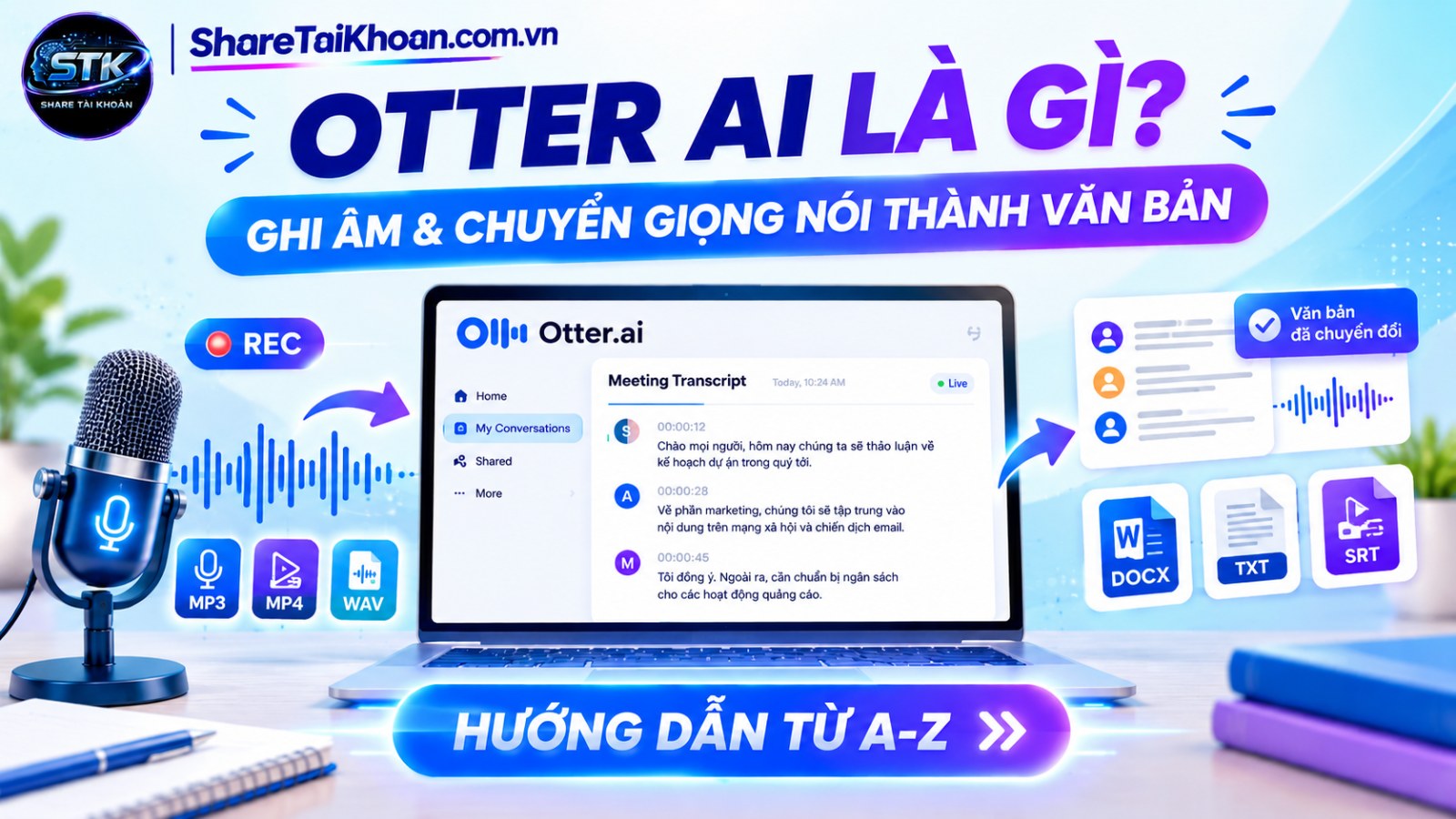
What Is Otter AI? A Complete Guide to Recording and Converting Speech to Text
Otter AI is an artificial intelligence tool that records audio, converts speech to text, and automatically creates meeting notes. Using speech recognition technology, Otter can record conversation content, distinguish between speakers, summarize key points, and identify follow-up tasks after a meeting.
In addition to supporting live recording, Otter AI integrates with online meeting platforms such as Zoom, Google Meet, and Microsoft Teams, helping users spend less time taking notes manually.
In particular, Otter now supports Vietnamese transcription alongside English and many other languages, expanding its potential uses for Vietnamese users.
So What is Otter AI? How do you use Otter to record meetings and convert speech to text? Is Otter AI free?
Let's ShareTaiKhoan Learn more in the article below.
What is Otter AI?
Otter AI, commonly referred to as Otter.ai, an AI-powered meeting note-taking platform.
This tool is designed to record, transcribe, and organize content from in-person conversations or online meetings.
Instead of taking notes continuously while attending a meeting, users can let Otter help record the content and review the transcript afterward.
Otter's standout features include:
Record and convert speech to text.
Transcribe online meetings.
Identify and distinguish between speakers.
Automatically summarize meeting content.
Extract follow-up tasks.
Search the transcript.
Import an audio or video file for transcription.
Share notes with members.
Ask questions about the meeting through Otter AI Chat.
Otter can be used in supported browsers, desktop apps, and mobile apps.
Official website: https://otter.ai
Otter AI’s standout features
2.1. Recording and transcribing speech
Otter lets users record directly through the microphone on a computer or mobile device.
While recording, the tool can create a transcript almost in real time.
For example, during an internal meeting, you can use Otter to record what is said instead of typing it manually.
After the recording ends, the transcript is saved so users can review, edit, and share it.
2.2. Automatic meeting notes
One of Otter's key features is Otter Notetaker.
This is an AI assistant that can join meetings on supported platforms such as:
Zoom.
Google Meet.
Microsoft Teams.
Otter Notetaker can record meetings, create transcripts, and help summarize important information.
Users can connect Google or Microsoft calendars to sync scheduled meetings and configure Notetaker's participation settings.
2.3. AI-powered meeting summaries
Otter does more than convert speech to text; it also helps create automatic summaries.
For example, a 60-minute meeting may cover many issues, decisions, and tasks to be carried out.
After a meeting ends, Otter can help compile:
Main content.
Issues discussed.
Important decisions.
Action items.
Person in charge mentioned.
Items to follow up on.
However, AI-generated summaries should be reviewed before being used as official meeting minutes.
2.4. Speaker identification
Otter can distinguish between speakers in a conversation.
For example, an interview with two participants can be divided into dialogue segments by speaker.
This makes it easier for users to follow who said what.
However, AI may misidentify speech when several people speak at once, the audio quality is poor, or speakers have very similar voices.
2.5. Otter AI Chat
Otter AI Chat lets users ask questions about meeting content.
For example:
"Summarize the main decisions from this meeting."
Or:
"What tasks were assigned to the marketing team?"
AI uses accessible meeting data to help search for information and compile answers.
This feature is useful when users need to review content without listening to the entire recording again.
How to use Otter AI to record and transcribe speech
Here’s how to use Otter in a desktop browser.
Step 1: Access Otter Otter.ai
Open a browser and go to:
Sign up for or log in to an Otter account.
New users can choose the free Basic plan to get started.
Step 2: Set the language
Before recording, check the transcription language in your account settings.
If the conversation is in Vietnamese, select Vietnamese from the list of supported languages.
Choosing the correct language helps Otter process content more accurately.
Note that selecting a transcription language does not mean Otter will automatically translate speech into another language.
Step 3: Start recording
On the main screen, select the button Record.
Your browser may ask for permission to use the microphone.
Once permission is granted, Otter starts recording and creating a transcript.
For example, when recording a group discussion, you can follow the content as it is transcribed right in the interface.
Step 4: Stop recording
When the conversation ends, select Stop Recording.
Otter will save the content and continue processing what is needed to complete the transcript.
Step 5: Check the transcript
Open the saved recording to review it.
Check:
Participant names.
Specialized terminology.
Numbers and dates.
Interrupted sentences.
Content attributed to each speaker.
Reviewing the transcript is essential if it will be used to prepare minutes, write reports, or conduct research.
Step 6: Export the transcript
Open the conversation and select the three-dot menu, then select Export.
The export format depends on the subscription plan.
With Basic, Otter lets you export content as TXT. Paid plans offer additional formats and advanced export options.
You can open the TXT file in a text editor or copy its contents into Word to edit them.
How to use Otter AI with Zoom, Google Meet, and Microsoft Teams
One important use of Otter is automatically taking notes during online meetings.
Step 1: Set up Otter Notetaker
Log in to Otter and find the Notetaker settings.
Step 2: Connect your calendar
Connect Google Calendar or Microsoft Calendar to Otter if you want to sync scheduled meetings.
You need to grant the appropriate permissions and check your privacy settings.
Step 3: Select a meeting
Otter can detect calendar events with Zoom, Google Meet, or Teams links.
Users can configure Notetaker to join selected meetings or apply suitable automated rules.
Step 4: Start the meeting
During a meeting, Otter Notetaker can join as a note-taking assistant, depending on the configured settings.
Let participants know that the meeting is being recorded or transcribed, and ensure that the necessary consent has been obtained.
Step 5: View the results
After the meeting ends, open the recording in Otter.
Here, you can view the transcript, summary, key points, and action items identified by AI.
Note: If you only use the Record feature in a browser, Otter may not always capture audio from participants speaking through speakers or headphones. For online meetings, Otter Notetaker or a suitable desktop app may be a better option.
How to transcribe MP3 and MP4 files with Otter AI
In addition to live recording, Otter also supports importing existing audio and video files.
Commonly supported formats
Group | Format |
|---|---|
Audio | MP3, M4A, WAV, AAC, WMA, OGG |
Video | MP4, MOV, AVI, MPEG, WMV, MKV |
According to Otter, each uploaded file can be up to 5 GB, but is still subject to the plan's limits.
Steps
Step 1: Access the Otter interface.
Step 2: Choose Import in the upper area of the interface.
Step 3: Select Browse or drag and drop an audio/video file.
Step 4: Select the correct transcription language if prompted.
Step 5: Wait for the upload and processing to finish.
Step 6: Open the transcript, review the content, and make edits.
Step 7: Export the text in a format supported by your subscription plan.
This approach works well for interviews, lectures, podcasts, or meetings that were recorded earlier.
Does Otter AI support Vietnamese?
Yes. According to Otter’s current support documentation, Vietnamese is among the supported transcription languages.
In addition to Vietnamese, Otter also lists English, French, Spanish, Japanese, Korean, German, Chinese, and many other languages.
To transcribe Vietnamese:
Go to the transcription language settings.
Select Vietnamese.
Start recording or import a file in Vietnamese.
Review the content after it has been processed by AI.
For recordings processed in the wrong language, Otter currently provides instructions for reprocessing them by changing the language on the web or desktop version.
However, Vietnamese transcription may still be affected by regional accents, microphone quality, background noise, and speaking speed.
Users should test a short recording before using the service for important documents.
Is Otter AI free or paid?
Otter currently offers Basic, Pro, Business, and Enterprise plans.
According to the official price list checked on 13/11/2026:
Plan | Reference price | Audience |
|---|---|---|
Basic | Free | New users |
Pro | $16.99/user/month | Individuals and small teams |
Business | $30/user/month | Workgroups and businesses |
Enterprise | Contact us for a quote | Large enterprises |
The Pro plan costs approximately USD 8.49 per person per month when billed annually. Business pricing and offers may vary by billing cycle.
7.1. What does free Otter Basic include?
The Basic plan includes:
300 minutes of transcription per month.
Record and transcribe in real time.
Speaker identification.
AI Chat within the plan.
3 audio/video file imports over the lifetime of the plan.
iOS and Android apps.
One thing to keep in mind is 3 file imports do not mean 3 imports per monthThis is the cumulative allowance for a Basic account.
7.2. What are the standout features of Otter Pro?
The Pro plan expands access to:
1,200 minutes of in-app recording per month.
Up to 90 minutes per meeting, subject to the applicable limits.
10 audio/video file imports per month.
Advanced AI tools.
Add more options for exporting and managing recordings.
Vocabulary tools and speaker management.
7.3. Who is Otter Business for?
The Business plan is designed for teams that hold meetings regularly.
This plan provides extended meeting recording access, unlimited file imports subject to the applicable policy, a maximum of 4 hours per meeting, and team administration tools.
Users should compare their needs with the actual limits before subscribing.
Official pricing: https://otter.ai/pricing
Otter AI vs. TurboScribe: Which tool is better?
Otter AI and TurboScribe both support converting audio to text, but they have different priorities.
Criteria | Otter AI | TurboScribe |
|---|---|---|
Primary purpose | Meeting note-taking assistant | Transcribe audio and video files |
Live recording | Yes | Not the focus |
Notes for Zoom, Meet, and Teams | Notetaker integration | Primarily working with existing files |
Speaker recognition | Yes | Yes |
Meeting summary | Yes | Not a core feature |
Vietnamese transcription | Yes | Yes |
Convert MP3/MP4 to text | Yes | Yes |
Export subtitles | Available depending on the plan | Yes |
Best fit | Groups that meet regularly | Person who handles multiple audio recordings |
When should you choose Otter AI?
Otter is suitable if you frequently:
Join online meetings.
Need to take notes and summarize meetings.
Manage follow-up tasks after meetings.
Share notes with the group.
Want to search for information from previous meetings.
When should you choose TurboScribe?
TurboScribe is suitable if you:
Have multiple recordings to transcribe.
Frequently process long videos.
Need to convert audio to text.
Want to create captions for videos.
You don't need an AI assistant to join meetings automatically.
If meeting management is the main need, Otter is worth considering. If the main task is transcribing existing files, TurboScribe may be a better fit.
Practical uses of Otter AI
Office workers
Otter can help record meetings, summarize content, and identify action items.
For example, after a marketing meeting, the team can review the discussion and check which tasks were assigned.
Students and lecturers
Otter can help record lectures, seminars, and group discussions when recording is permitted.
Students can use transcripts to review material, search for important content, and create study notes.
Journalist
With the participants’ consent, Otter can help create transcripts of interviews for journalists to reference and edit.
However, all quotations should be checked against the original audio.
Scientific researchers
Otter can help create a preliminary transcript of qualitative interviews.
Researchers still need to check accuracy, data security, and compliance with research ethics requirements.
Business teams
Sales teams can use Otter to summarize discussions, track customer requests, and review action items.
Important notes when using Otter AI
Check for consent before recording.
Do not allow an AI assistant to join or record a meeting automatically unless you have ensured that the necessary consent has been obtained and the appropriate usage rights are in place.
Personal data protection
Meetings may contain customer information, business data, and internal documents.
Before uploading content to Otter, check its data storage, sharing, and access policies.
Do not assume the transcript is completely accurate.
AI may misrecognize names, numbers, or specialized terminology.
Review the AI Summary content.
The summary may miss context or interpret details inaccurately.
For minutes and important decisions, someone should be responsible for reviewing them.
Be cautious with shared accounts
Do not use a shared account to record private meetings or store sensitive information, as privacy and data access may not be guaranteed.
Frequently asked questions about Otter AI
Is Otter AI free?
Yes. The free Basic plan includes 300 transcription minutes per month and limited access to some features.
Does Otter AI support Vietnamese?
Yes. Vietnamese is listed by Otter as a supported transcription language.
Can Otter AI record Google Meet?
Yes. Otter Notetaker can join and take notes in Google Meet, depending on its configuration and granted permissions.
Can Otter be used with Zoom?
Yes. Otter supports note-taking in Zoom meetings and offers options for calendar syncing, recording, and transcript generation.
Can Otter convert MP3 files to text?
Yes. Users can import compatible audio files for Otter to transcribe.
Can Otter export Word files?
Otter supports text export options depending on the plan. With the Basic plan, users can export a TXT file and then open or copy it into Word.
Does Otter automatically summarize meetings?
Yes. Otter offers AI-powered summarization and action item identification, depending on access permissions.
How are Otter AI and TurboScribe different?
Otter focuses on recording, note-taking, and meeting management. TurboScribe focuses on converting audio and video files into text.
Conclusion: Should you use Otter AI?
Otter AI is worth considering for people who regularly attend meetings and need to convert speech to text.
With audio recording, Vietnamese transcription, speaker identification, summaries, and integration with Zoom, Google Meet, and Microsoft Teams, Otter can help reduce the time spent taking notes and tracking tasks.
If they only need to try it out, users can start with the free Basic plan.
For those who regularly attend long meetings or work in teams, the Pro and Business plans offer expanded usage.
However, check the transcript's accuracy, security terms, and actual limits before use.
Explore AI tools at ShareTaiKhoan
Are you looking for an AI tool to help record meetings, convert speech to text, or process documents?
Explore more AI service guides and options at ShareTaiKhoan to find the right tool for your needs and budget.
Account Sharing | ShareTaiKhoan
Website: https://sharetaikhoan.com.vn
Zalo/WhatsApp: +84 337 018 337
ShareTaiKhoan is an independent service provider, not the developer Otter.ai or an official agent confirmed by Otter.
References:
Otter Pricing – https://otter.ai/pricing
Otter Help Center – Supported Languages
Otter Help Center – Record a Conversation
Otter Help Center – Import an Audio or Video File
Otter Help Center – Otter Notetaker Overview
Otter Help Center – Export Conversations
Updated 13/11/2026. Prices, limits, and features may change according to Otter’s policies.
(0 ratings - 0/5)
Buy affordable accounts at ShareTaiKhoan
Related products

Other articles
- Otter AI vs TurboScribe 2026: Which Tool Should You Choose?
- What Is New in Suno v6? Models, Studio 2.0 and Plans for 2026
- When Is Black Friday 2026? Sale Schedule & Shopping Tips
- Is Gemma 5 Coming Soon? Google Makes AI 2.85 Times Faster
- Is Meta Muse Free? Plans and Terms of Use
- What is Udemy Business? A corporate training platform
- What is QuillBot? A guide to using QuillBot from A–Z
Comments (0)
Sign in or register to comment.
No comments yet.