
Grok Imagine: How to Create and Edit AI Images Step by Step

Published:

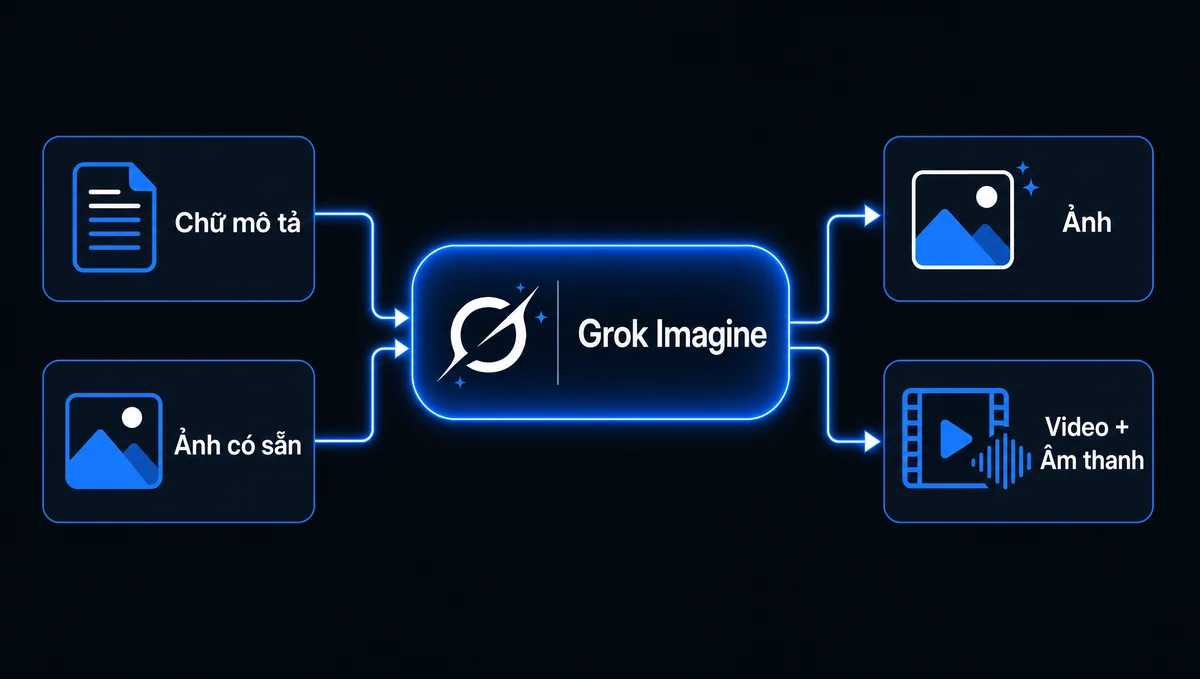
Grok Imagine is the image and video generation feature built right into Grok. Type a description and Grok returns an image; upload a photo and Grok can edit it based on your instructions or turn it into a short video. This article follows the steps a beginner would take: check your account, create your first image, edit an image, then use the sample prompts for real work.
Grok Imagine: A step-by-step guide to creating and editing AI images, with 12 sample prompts
Grok Imagine is the image and video generation feature built right into Grok. Type a description and Grok returns an image; upload a photo and Grok can edit it based on your instructions or turn it into a short video. This article follows the steps a beginner would take: check your account, create your first image, edit an image, then use the sample prompts for real work.
What account do you need to use Grok Imagine?
Imagine is available on grok.com and in the Grok app. Here's what you need to know before you get started:
A paid plan is a practical requirement. According to product-tracking sources, since March 2026, free accounts can still see the Imagine tab, but clicking it brings up an upgrade screen. The lowest-tier plan that includes Imagine is SuperGrok Lite; the popular plan is SuperGrok.
Shared usage limits. Since June 2026, paid plans have used a shared weekly usage pool for chat, Imagine, voice, and coding tools. Creating more images and videos will leave less usage available for chat.
Content filters are stricter than before. Images of real people, sensitive content, and copyrighted characters are likely to be rejected. For commercial images, describe your own product and setting.
If you're not sure which plan to choose, read the article compare Grok plans first.
Create your first image in 5 steps
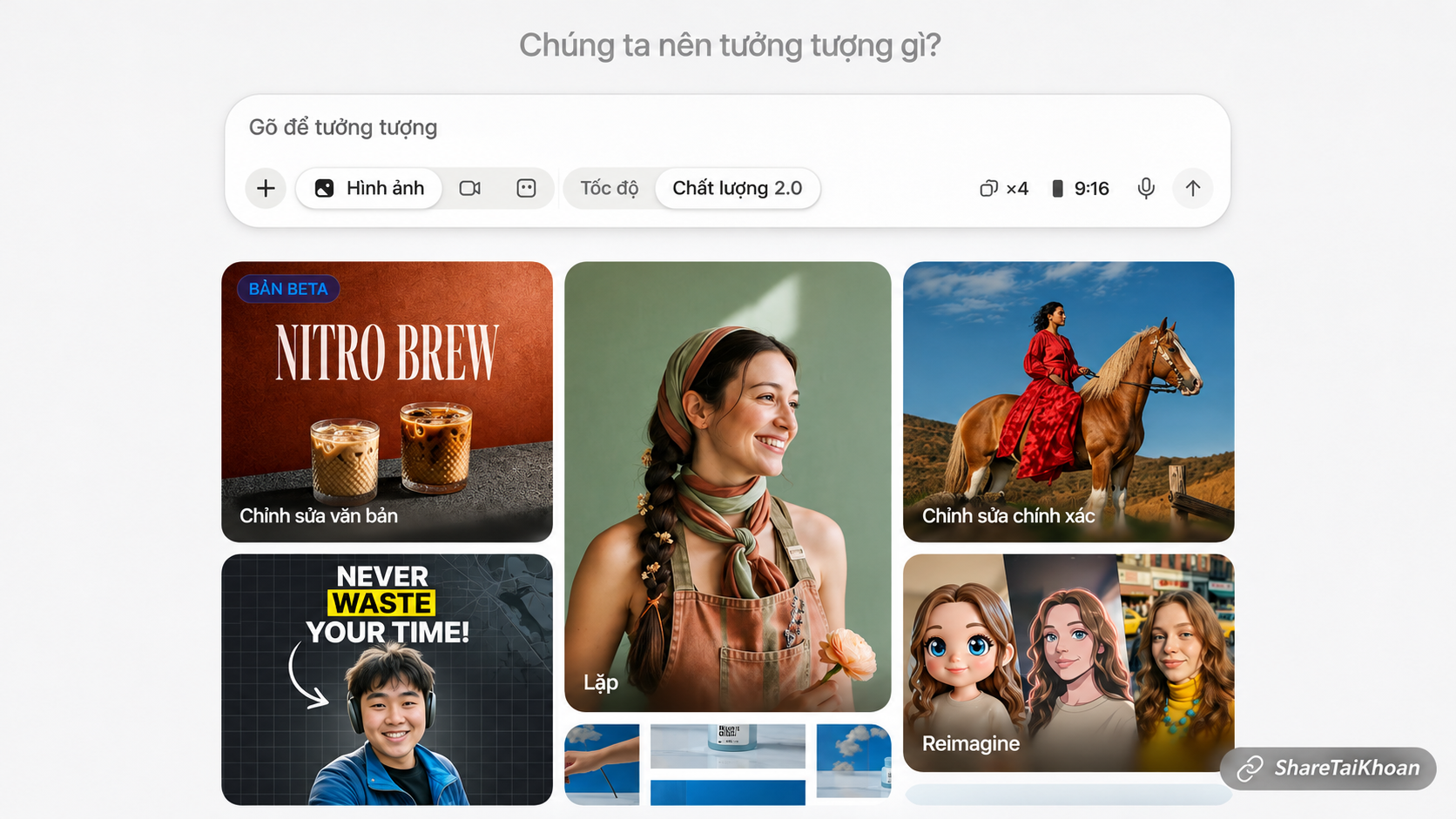
Go to grok.com, sign in, and select the Imagine tab. Imagine.
Enter a description in the input box. The first sentence should clearly state the subject; use the following sentences to add context and lighting.
Choose the aspect ratio for the platform where you'll post: square for e-commerce, vertical for short videos, and horizontal for article covers.
Click Create and wait for the results grid. Don't edit the prompt right away; look at which image is closest to what you had in mind and why.
Choose the best image, then ask for variations or further edits in words instead of rewriting the prompt from scratch.
A common mistake in step 2 is writing a disconnected list of keywords. Describing the image in complete sentences, in descending order of importance, usually produces more consistent results.
The 6-part prompt formula
A good prompt answers all six questions below. If any part is missing, Grok will fill it in on its own.

You can write prompts in Vietnamese. If the results aren't quite right, try the same content in English and compare; for photography terms such as soft light, macro, flat lay[", English is usually interpreted more accurately."]
Edit existing images and turn images into videos
Edit image: Upload the image to Imagine and specify one change at a time. For example: "Keep the product unchanged, change the background to a light-colored wooden surface," then "add a soft shadow on the right." Combining multiple requests in one sentence can cause Grok to change parts you want to keep.
Image to video: choose an image you're happy with, click Create video, and describe the motion: the camera slowly moves closer, steam rises, hair moves gently in the breeze. The simpler the motion, the less distortion there will be. Video uses more of your usage limit than images, so only create videos from images you've finalized.
Three common mistakes:
Misspelled text in images: leave text out of the prompt and add it afterward using Canva or CapCut.
Distorted hands or logos: request an angle that does not show hands, and don't describe the logo.
Create one style at a time: copy the style and lighting details unchanged into the next prompt.
12 sample prompts for different purposes
Product image
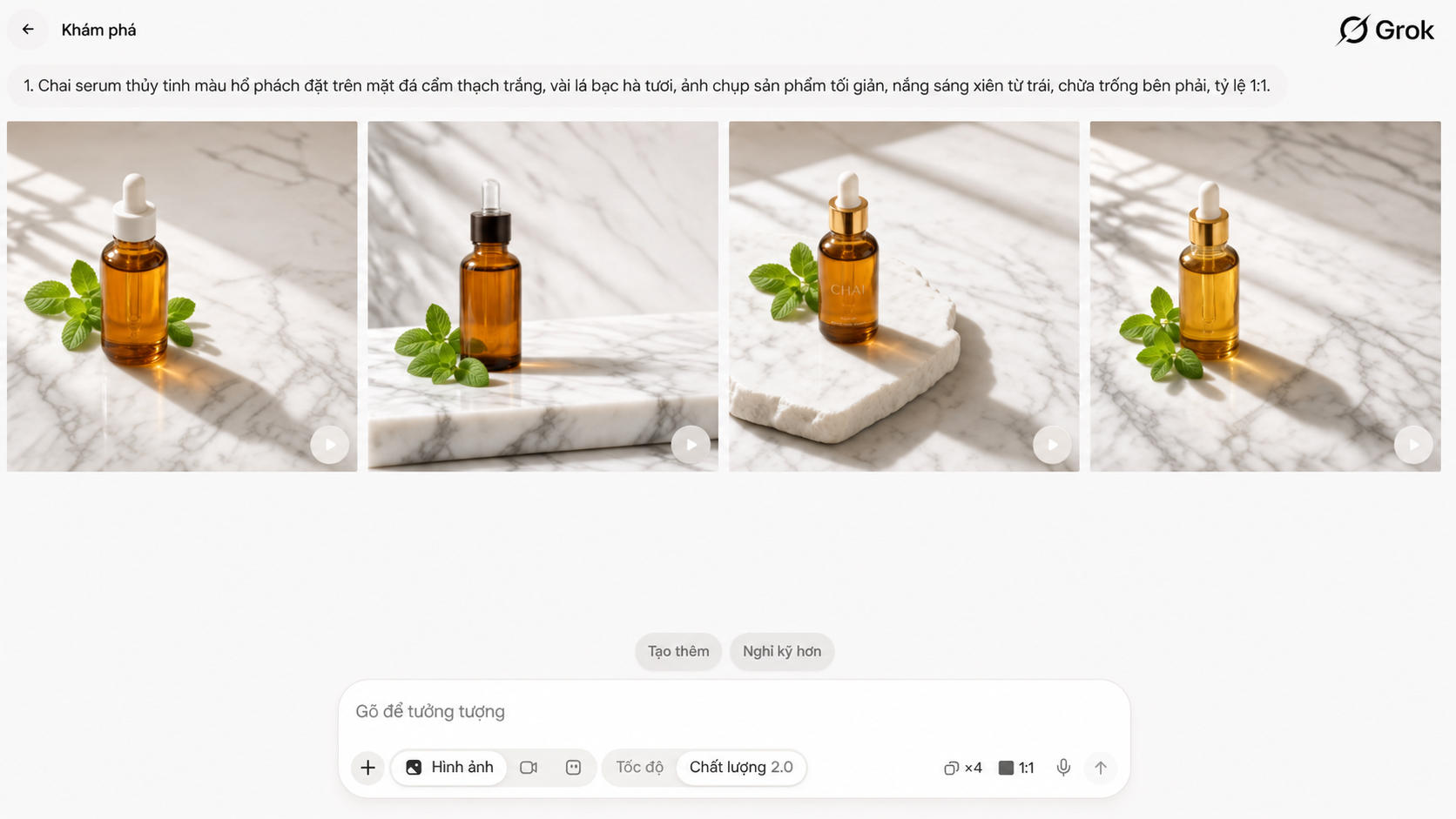
An amber glass serum bottle on a white marble surface, a few fresh mint leaves, minimalist product photography, bright sunlight coming in at an angle from the left, empty space on the right, 1:1.
White sneakers floating against a pastel blue background, clear shadow below, advertising style, studio lighting, 45-degree angle, 4:5.
A glass of iced coffee with milk on a wooden table at a sidewalk café, blurred background, afternoon sunlight, everyday lifestyle photography, 9:16.
Article covers and social media
A top-down view of a desk with a laptop, notebook, and cup of tea, beige and green tones, flat lay, plenty of empty space in the middle for a title, 16:9.
A flat illustration of someone studying online at night, warm yellow desk lamp, simple lines, navy blue and orange color palette, 16:9.
Abstract soft-wave background, gradient from purple to pink, no text, 9:16.
Illustrations and ideas
A neatly arranged 20-square-meter rental room with a loft bed and a large window, interior architecture photography, natural light, wide-angle view.
The mascot is an orange cat wearing a delivery uniform, 3D cartoon style, white background, full body, waving.
Hand-drawn watercolor illustration of a coffee bean's life cycle from farm to cup, circular layout, no text.
Edit an existing image
Keep the person and clothing unchanged; replace the background with a bright office, with lighting consistent with the subject.
Keep the product unchanged; change the cap color from black to white without changing anything else.
Extend the image to the left and right to create a 16:9 aspect ratio, continuing the existing scene.
Frequently asked questions
Is Grok Imagine free?
At the time of checking, generating images with Imagine requires a paid plan. This policy has changed several times, so check directly in your account.
Can images created with Grok be used commercially?
Usage rights depend on xAI's terms at the time you create the image. Before running ads, read the terms of service and avoid images featuring real people, brands, or characters belonging to others.
Should you create images with Grok or ChatGPT?
If you already use Grok for real-time search and want to create images and videos in one place, Imagine is convenient. If you need accurate Vietnamese text in an image, try both with the same prompt and choose the one you prefer.
You can view Grok account options at ShareTaiKhoan's Grok product page.
References
ShareTaiKhoan is an independent service, not xAI or an xAI representative. Prices, usage limits, and terms are determined by the provider and may change; the information in this article was checked in November 2026.
(0 ratings - 0/5)
Buy affordable accounts at ShareTaiKhoan
Compare packages
| Product | Package | Type | Price | |
|---|---|---|---|---|
| Grok | Premium - 1 month | Private | 599.000₫ | Buy |
Related products


Other articles
- Canva Pro or Photoshop? A Comparison for Marketing in 2026
- Runway Act-Two: Animate AI Characters Using Your Video
- Systematic Literature Reviews with Elicit: A 6-Step Process
- Semrush One and AI Visibility: Measuring Brand Presence in ChatGPT
- Create Natural-Sounding Vietnamese AI Voiceovers with Vbee: 7 Techniques
- How to Find Bestselling TikTok Shop Products with Kalodata
- Adding Voiceovers to Videos and Lectures with Vbee: A 6-Step Process
Comments (0)
Sign in or register to comment.
No comments yet.