
Adding Voiceovers to Videos and Lectures with Vbee: A 6-Step Process

Published:
Recording a 5-minute video often takes an entire morning or afternoon: stumbling over words, noise and retakes. AI voiceovers reduce that to about an hour, provided you follow a workflow. Most people fail because they paste the entire script in one go and then try to fit the visuals to the audio. The right approach is the reverse: divide the video into scenes first, then generate the voiceover for each scene.
The Vbee voiceover workflow for videos, lessons and YouTube: from script to finished file
Recording a 5-minute video often takes an entire morning or afternoon: stumbling over words, noise and retakes. AI voiceovers reduce that to about an hour, provided you follow a workflow. Most people fail because they paste the entire script in one go and then try to fit the visuals to the audio. The right approach is the reverse: divide the video into scenes first, then generate the voiceover for each scene.
Step 1. Write a script for listeners
Write as if you’re speaking to one person, using “you” and “I.”
Keep sentences short, with one idea per sentence.
Write out numbers and symbols in words. For details, see the article create natural-sounding Vietnamese narration.
State what viewers will gain within the first 5 seconds.
Step 2. Divide the script by scene
Create a four-column table. Each row represents one visual scene, paired with the exact narration for that scene.
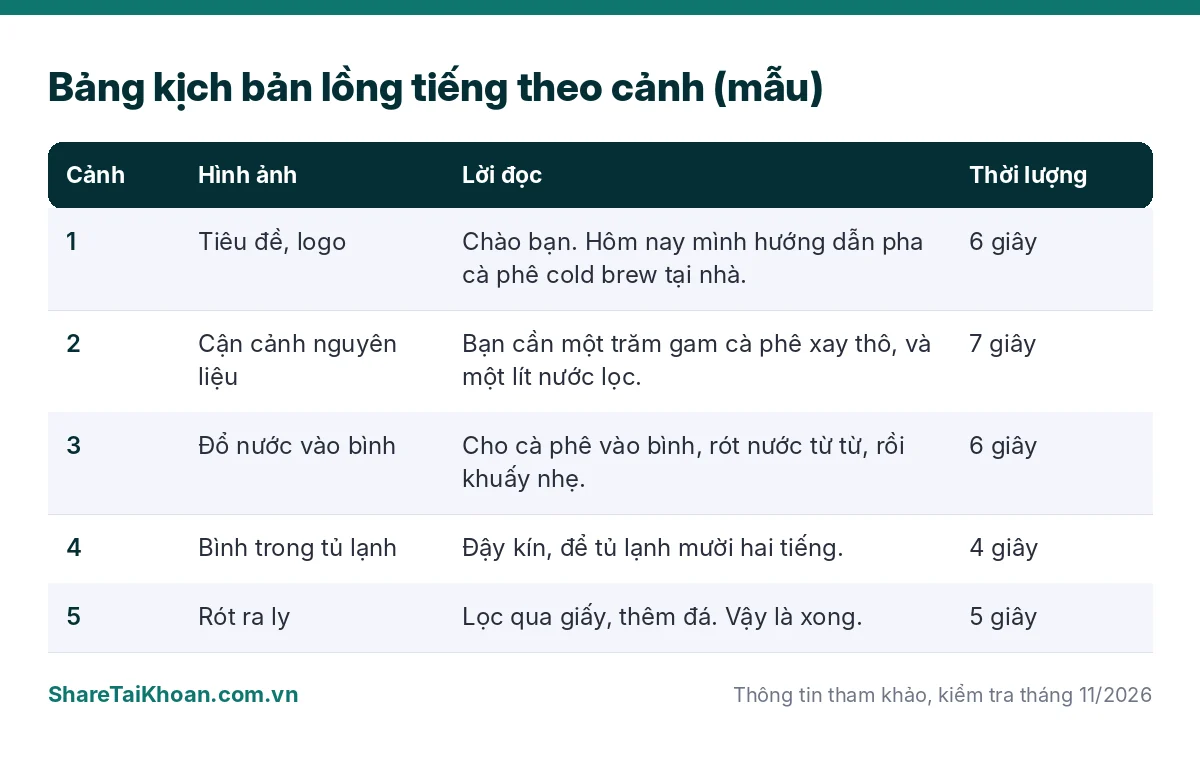
The benefit of the table: you can immediately see which scenes have too much narration for the visuals, and when edits are needed, you only have to regenerate a single row.
Step 3. Estimate the character count and cost
Vbee measures usage limits by character count. For a quick estimate: one minute of Vietnamese narration at a moderate speed requires around 800 to 1,000 characters including spaces. This figure varies by voice and speed, so take a measurement using your chosen voice.
5-minute video: around 4,000–5,000 characters.
Add 20–30% for sections that need to be regenerated.
A course with 20 lessons, each 8 minutes long: approximately 130,000–160,000 characters, plus a buffer.
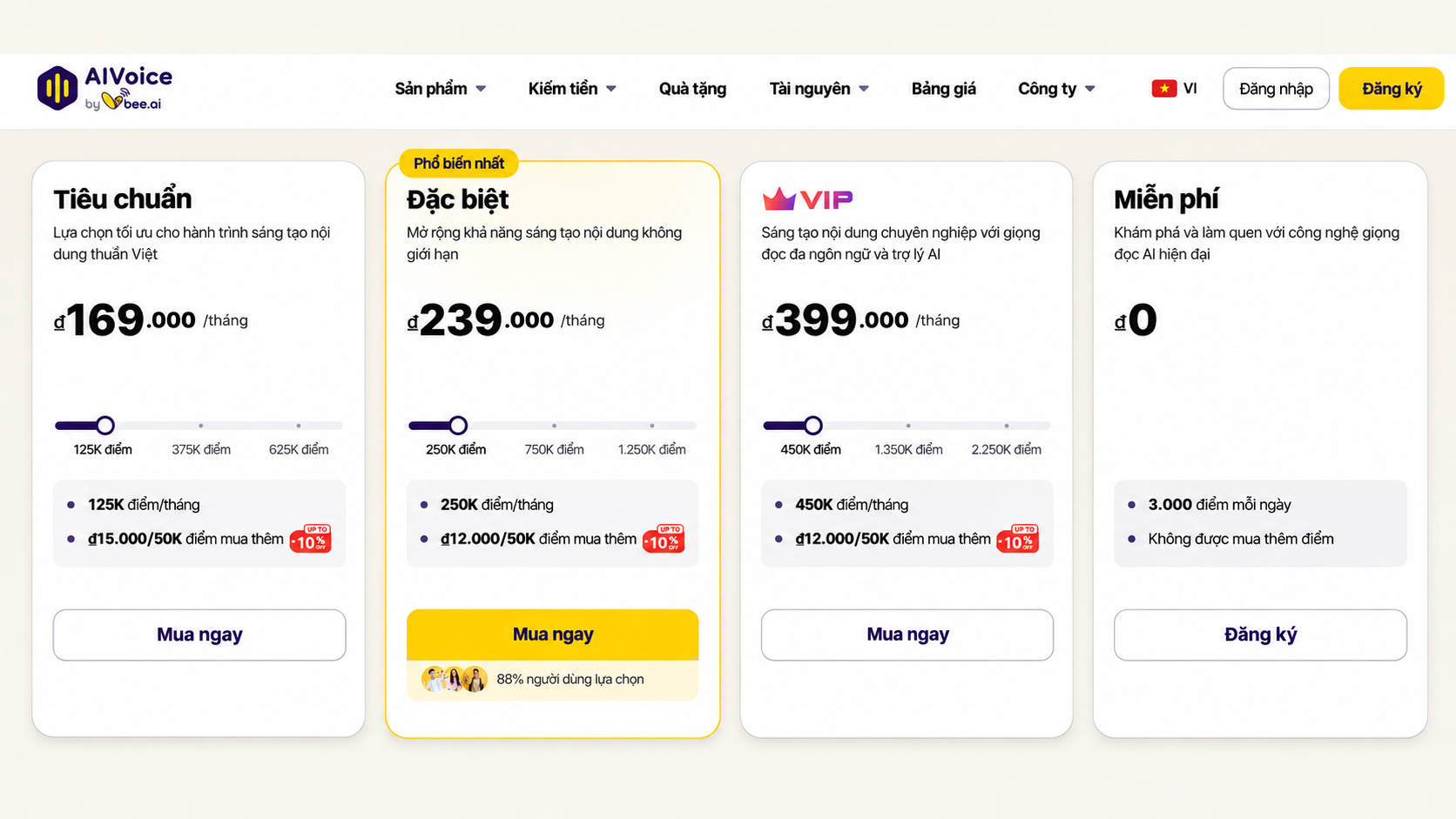
Then choose a plan based on the total number of characters you need each month rather than the price.
Step 4. Generate the voiceover for each scene
Choose one voice and one speed for the entire video. Note them down to use in future episodes.
Paste each scene's narration into Vbee as a separate section.
Listen to each segment, edit the text wherever it is mispronounced, and regenerate only that segment.
Export the files and name them by scene number:
canh-01.mp3,canh-02.mp3.
For long lectures, work chapter by chapter to make them easier to manage.
Step 5. Assemble everything in video editing software
In CapCut or your preferred software:
Place each voice file in the correct scene.
Adjust the visuals to match the audio, rather than stretching the audio. Changing the audio speed distorts the voice; shorten or lengthen the visual scene instead.
Leave half a second of silence between scenes so viewers can keep up.
Add background music at a low volume, and turn it down significantly during narration.
Turn on automatic subtitles, then edit them to match the original script.
If you do not yet have a video editing tool, see CapCut.
Step 6. Check before publishing
Watch the whole video using your phone's speaker, as most viewers listen through speakers.
Check proper names, figures and prices.
Are the narration and visuals out of sync by more than one second in any scene?
Is the volume consistent across scenes?
Applying the workflow to three types of content
YouTube tutorial and roundup videos. Keep the same voice throughout the channel. Make the first 15 seconds particularly tight, as this is what determines whether viewers stay.
Online lessons. Use one spoken passage per slide and a slower-than-default pace. Add transition sentences like “Next, let’s look at an example” so learners know when you’re moving on to a new point. When the content changes, you only need to recreate that slide instead of recording the entire presentation again.
Short sales videos. Keep the narration under 60 words for a 20-second video. State the problem in the first sentence and end with a call to action. Use a voice with the same regional accent as your target customers.
Notes on platforms and copyright
YouTube and other platforms have their own policies on content using synthetic voices and mass-produced repetitive content. AI voices are not the issue; copied content that offers no unique value is the issue.
Do not use a cloned version of someone else's voice without their consent.
Check the commercial usage rights of your current plan.
Frequently asked questions
How long does it take to add a voiceover to a 5-minute video?
Once the script is ready, it takes about an hour to generate the voiceover, assemble everything and check it. Your first attempt will take longer.
Can foreign-language videos be dubbed into Vietnamese?
Yes, by translating the script, generating Vietnamese narration and combining it with the video. If you need to preserve the speaker's original voice in another language, ElevenLabs' dubbing feature is more suitable; see the article ElevenLabs hay Vbee.
Where can I buy Vbee?
Xem Vbee product page and the article about Vbee plans is already available on the blog.
References
ShareTaiKhoan is an independent service, not Vbee or a representative of Vbee. Prices, allowances, and terms are determined by the provider and may change; the information in this article was checked in 11/2026.
(0 ratings - 0/5)
Buy affordable accounts at ShareTaiKhoan

Related products


Other articles
- Create Natural Vietnamese AI Voiceovers with Vbee: 7 Techniques
- Canva Pro or Photoshop? A Comparison for Marketing in 2026
- Runway Act-Two: Animate AI Characters Using Your Video
- Systematic Literature Reviews with Elicit: A 6-Step Process
- Semrush One and AI Visibility: Measuring Brand Presence in ChatGPT
- How to Find Bestselling TikTok Shop Products with Kalodata
- Using Perplexity for Keyword Research and SEO Competitor Analysis
Comments (0)
Sign in or register to comment.
No comments yet.