
What Is Kahoot? An A–Z Guide to Creating Quiz Games

Published:
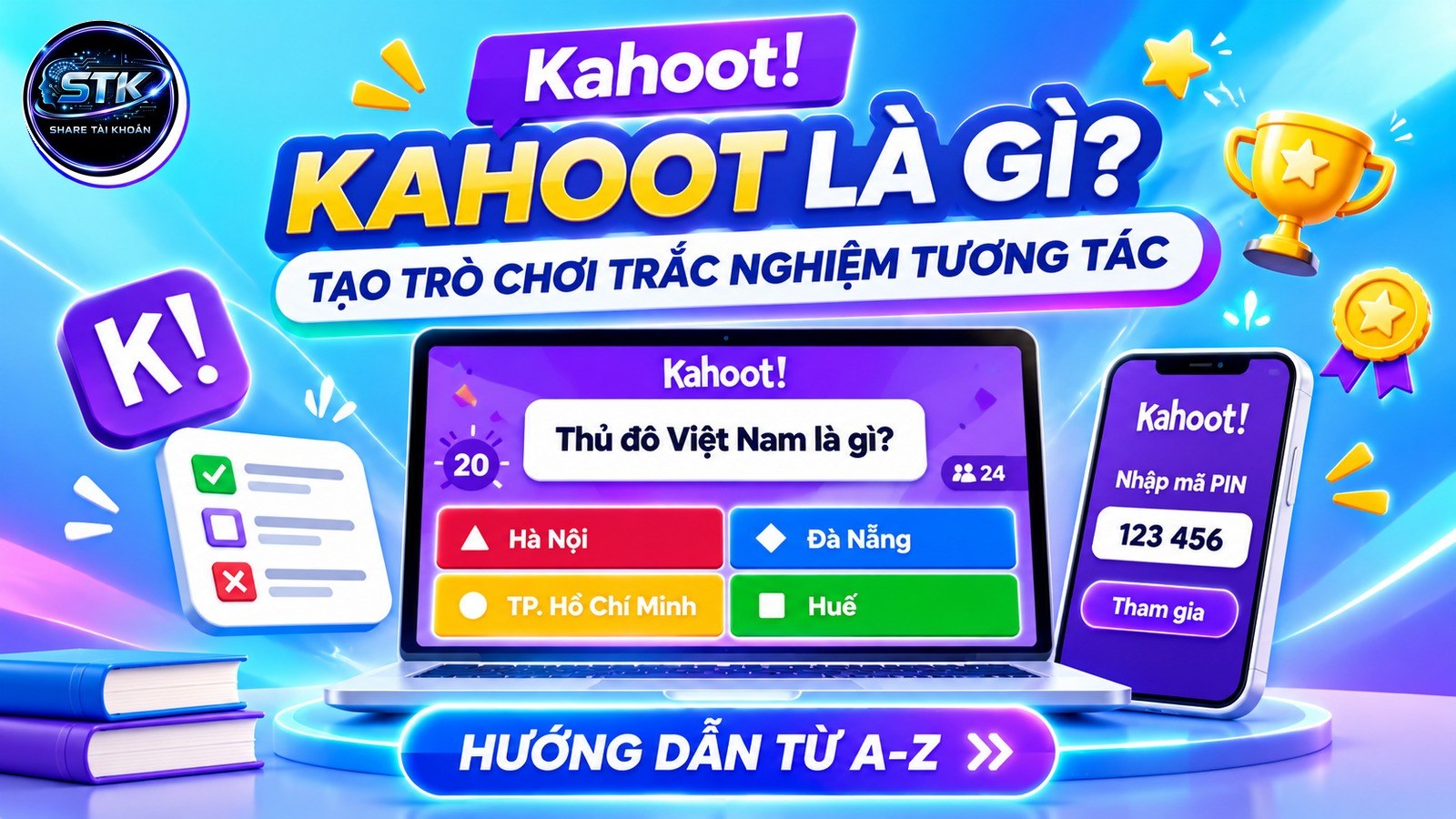
What Is Kahoot? A–Z Guide to Creating Interactive Quiz Games
Would you like to turn regular lessons or training sessions into engaging activities that get participants excited about answering questions and help them retain information better? Instead of using traditional tests, you can try creating an online quiz game that learners can join on their phones or computers.
Kahoot is an interactive learning platform (Game-Based Learning). enables teachers, school students, university students, and trainers to design quiz games, host live competitions, and test knowledge using a scoring system. Participants only need to enter a PIN or scan a QR code to start playing.
In particular, in 2026, Kahoot continues to expand its AI tools, which can generate multiple-choice questions from topics, PDF documents, presentations, or website content, reducing the time needed to prepare learning materials.
So What is Kahoot? How do you create a quiz game on Kahoot? Is Kahoot free, and how do you run a game for an entire class?
Let's ShareTaiKhoan explore Kahoot’s standout features and learn how to use it from A to Z in the article below.
What is Kahoot?
Kahoot!, commonly known simply as Kahoot, is an online learning game platform known for its interactive Q&A and competition format.
The tool is used in many activities, including teaching, reviewing knowledge, staff training, group activities, and events.
Instead of taking a paper-based test, participants can answer questions live on their personal devices.
Popular Kahoot features include:
Create a multiple-choice quiz.
Create true-or-false questions.
Add images, videos, and supporting content.
Host a live game for many participants.
Allow participants to join using a PIN or QR code.
Award points and display the leaderboard.
Assign an online activity to complete later.
Track learners' answers.
Automatically generate questions with AI on eligible plans.
Kahoot can be used in a web browser or mobile app.
Official website: https://kahoot.com
Game join page: https://kahoot.it
How does Kahoot work?
Kahoot typically has two main roles: the game host and the participants.
Host
The organizer, usually a teacher or trainer, creates a set of questions with predefined answers.
Once they have finished, they can choose to host the game live or assign it to learners.
Participants
Participants open the page kahoot.it, enter a game PIN or scan the QR code, then choose a nickname.
When the game starts, players use their devices to submit their answers.
In games that award points, the system typically takes accuracy and response speed into account, depending on the settings and game mode.
Example
The teacher organizes a geography review game with 10 questions.
Question:
"Which city is the capital of Vietnam?"
Answers:
A. Hanoi
B. Da Nang
C. Ho Chi Minh City
D. Huế
Students choose an answer on their devices and receive feedback immediately after each question.
This format creates a visually engaging review activity with a competitive element and instant feedback.
Kahoot’s standout features
3.1. Create interactive multiple-choice questions
Kahoot supports multiple-choice Quiz questions.
Teachers can create questions, enter answers, and mark the correct option.
For standard questions, Kahoot also lets you add images, GIFs, or videos to make them more engaging.
3.2. True-or-false questions
The True/False format is suitable for quickly checking knowledge or starting a lesson.
For example:
"The Earth revolves around the Sun."
Players choose True or False.
3.3. Advanced question types
Depending on the subscription plan, Kahoot also supports formats such as:
Poll: Opinion poll.
Puzzle: Arrange the answers.
Type Answer: Enter an answer.
Slider: Select a value on the slider.
Word Cloud: Create a word cloud.
Open-ended: Open-ended response.
Drop Pin: Mark a location on an image.
These question types make lessons more varied, but not all of them are included in the free plan.
3.4. Host live games
The host can select Host live to launch the game for the whole class.
Students answer on a phone or computer while the teacher controls the activity on the main screen.
3.5. Assign self-paced activities
In addition to live competitions, Kahoot also has an Assign mode.
Teachers can set a deadline and share the game for students to complete at their own pace.
3.6. Results reports
Kahoot lets you review game results, helping organizers identify the questions learners often answer incorrectly.
Access to view and export detailed reports depends on the subscription plan.
A–Z guide to creating a Kahoot quiz
Here’s how to create a game using a desktop browser.
Step 1: Visit Kahoot
Open https://kahoot.com and log in.
If you don't have an account, you can sign up under the category that best describes you, such as teacher, student, or individual user.
Step 2: Select Create
In the account interface, select Create on the navigation bar.
Then select Kahoot to open the game creator.
Step 3: Give the game a title
Enter a concise name that clearly reflects the content.
For example:
"Review: English Grade 6 – Unit 1"
Or:
"Test your knowledge of environmental protection"
You can add a description and profile image if needed.
Step 4: Add questions
On the left-hand toolbar, select Add question.
Choose the Quiz or True/False question type.
If you're using Quiz, enter the question and answer choices.
Step 5: Mark the correct answer
After entering the answer, select the correct option.
This is an important step so Kahoot can automatically grade the answers.
Step 6: Set the response time
Set a time limit that matches the difficulty of the question.
For example:
Recall questions: around 15–20 seconds.
Questions that require thought: around 30–60 seconds.
Long questions: may require more time.
The available time limits depend on the question type and current settings.
Step 7: Add images
For math, science, or geography, images can help learners understand questions more quickly.
You can add illustrations using the options provided in the interface.
Only use resources that you have the right to use.
Step 8: Create more questions
Continue selecting Add question to add the next questions.
According to Kahoot's guide updated on 12/11/2026, a game can contain up to 200 questions.
For a regular class, however, 10–20 questions are usually easier to organize.
Step 9: Save the game
Select Done or the corresponding completion option to save.
Then use Preview to check the game before hosting it.
If Kahoot asks you to upgrade to save, check whether you are using a premium feature marked with a star icon.
Guide to creating Kahoot questions with AI in 2026
In addition to creating questions manually, Kahoot also includes an AI tool that helps you build a set of questions more quickly.
According to the official guide updated in November 2026, Kahoot AI can generate content from a topic, PDF, URL, Wikipedia, or presentation slides.
Step 1: Open the AI creation tool
Log in to Kahoot and select Create.
Look for the option to create content with AI or Kahoot Assistant in a supported interface.
Step 2: Select a content source
You can choose:
Topic: Enter a topic.
PDF: Download a document.
URL: Paste a website link.
Wikipedia: Use articles from Wikipedia.
Slides: Use an existing presentation.
Step 3: Enter your requirements
For example:
"Create 10 multiple-choice questions about environmental protection for grade 7 students. Use Vietnamese, four answer options per question, and one correct answer."
Step 4: Review the AI-generated questions
Kahoot suggests questions and answers.
You need to check:
Are the questions factually correct?
Is the answer correct yet.
Is the difficulty level appropriate?
Are there any duplicate questions?
Does the language sound natural?
Step 5: Edit and save
Choose the relevant questions, edit the content, and save it as a game.
Note: AI question-generation tools are not available on every plan. Access and usage limits depend on the account type and subscription plan.
Guide to hosting a live Kahoot game
Once you have completed the question set, you can host a live competition for your class or group.
Step 1: Open the game
Log in to Kahoot and find the saved game in Library or Discover.
Step 2: Select Host live
Click Host live to open the waiting room.
Step 3: Set up the game
Choose the format and suitable options.
You can enable the display of questions and answers on players’ devices to support remote participants or those in a large classroom.
Step 4: Share the PIN
Kahoot displays a PIN, QR code, or participation link.
Players use that information to join the lobby.
Step 5: Start the game
When participants are ready, click Start.
The system displays the questions one by one and records the answers.
Step 6: View the leaderboard
After the questions, the game can display results and a leaderboard to increase engagement.
Step 7: Check the results
At the end, teachers can view reports available to them based on their access level to identify topics learners need to review further.
How to join a Kahoot game with a PIN
If you're a player, you don't need to know how to create questions.
Just follow these steps:
Step 1: Access https://kahoot.it.
Step 2: Enter the Game PIN provided by the host.
Step 3: Choose a nickname.
Step 4: Wait for the host to start the game.
Step 5: Read the question and select an answer on your device.
In addition to a PIN, players can also join via QR code or a direct link.
Usually, players do not need to register for a Kahoot account just to join a game.
Guide to assigning Kahoot activities to students
Kahoot is not just for live activities.
With Assign mode, teachers can assign a set of questions for students to complete at their own pace.
Steps
Step 1: Open the Kahoot question set.
Step 2: Choose Assign.
Step 3: Set a completion deadline.
Step 4: Adjust the game options if needed.
Step 5: Create an assignment and share the link, PIN, or QR code.
Students can open the assignment on their personal devices and complete it before the deadline.
The difference is that the host does not need to display each question live.
This feature is suitable for homework, exam revision, or self-study activities.
Is Kahoot free or paid?
Kahoot has a free plan and several upgrade plans.
Pricing and benefits vary for teachers, students, individual users, businesses, and educational institutions.
According to the school pricing page reviewed on 14/11/2026:
Plan | Reference price |
|---|---|
Kahoot! Go | Free |
Kahoot!+ Bronze | USD 3/month when billed annually |
Kahoot!+ Silver | USD 7/month when billed annually; promotional price shown |
Kahoot!+ Gold | USD 12/month when billed annually; promotional price shown |
Kahoot! One | USD 19/month when billed annually; promotional price shown |
This is the monthly equivalent when paying for the full year, based on the reference pricing table; it is not a fee charged month by month.
Kahoot also offers plans for EDU, schools, and organizations, with different usage rights.
Player limit
According to the table for teachers/schools:
Plan | Maximum participants per game |
|---|---|
Go | 10 |
Teacher Essentials | 40 |
Bronze | 50 |
Silver | 100 |
Gold | 200 |
One | 800 |
Account limits may vary depending on the audience type, signup date, and specific benefits.
When is the free version enough?
If you just want to try creating a small game or get familiar with Kahoot, the free version is a good choice.
When should you upgrade?
You might consider a paid plan when:
Want to host games for a large number of people.
Need additional advanced question types.
Use AI tools regularly.
Want to use detailed reports.
Need collaboration or classroom management features.
Before purchasing, double-check the price and benefits of the specific account type.
Official pricing: https://kahoot.com/schools/plans/
Does Kahoot support Vietnamese?
Users can create questions and answers in Vietnamese for question types that support text input.
For example:
"Which of these is a renewable energy source?"
A. Coal
B. Oil
C. Solar energy
D. Natural gas
However, it is important to distinguish between Vietnamese question content and interface language.
Not every part of the Kahoot interface is translated into Vietnamese.
If you use an AI tool to create questions in Vietnamese, you should also check the wording and the accuracy of the answers.
How is Kahoot different from Quizizz and Blooket?
Kahoot, Quizizz, and Blooket are all interactive learning game platforms, but they are not designed for exactly the same uses.
Criteria | Kahoot | Quizizz | Blooket |
|---|---|---|---|
Online quiz | Yes | Yes | Yes |
Live competition | Yes | Yes | Yes |
Assign self-paced work | Yes | Yes | A corresponding format is available |
Competitiveness | Scores and response speed | Depending on the mode | Multiple game mechanics |
Strengths | Live interaction and presentations | Practice, assessment | Knowledge-based entertainment game |
Suitable | Classes, events, training | Learning and assessment | Game-based review |
No single platform is best for every classroom.
If you want to host a live quiz competition with a presentation and leaderboard, Kahoot is worth considering.
If you need other ways to test and practise, you can try Quizizz or Blooket before deciding.
Tips for creating engaging Kahoot games
Choose a reasonable number of questions
For warm-up activities, you can start with 5–10 questions.
For review sessions, you can use 10–20 questions, depending on the time available.
Combine easy and difficult questions
Start with simple questions so players can get familiar with the game, then gradually increase the difficulty.
Add meaningful images
A geography question can use a map, while a science question can use a diagram.
Set a reasonable time limit
Avoid setting too little time for questions that require a lot of reading or calculation.
Explain the answer after each question
This is an important step to ensure the game serves learning objectives as well as fostering competition.
Check devices before class
If you're hosting in person, check the internet connection, projector, audio, and participants' ability to access the game.
Common issues when using Kahoot
Unable to save the game
The cause may be the use of premium questions or features that are not included in the current plan.
Check the items marked with a star, remove that feature, or upgrade if you really need it.
Players cannot join the lobby
Check the PIN, game lobby status, and internet connection.
Questions that are too long
If a question contains a lot of text, players may not have enough time to read it.
Shorten the wording and adjust the duration as appropriate.
Games with too many players
The number of participants is limited by the plan.
If you exceed the limit, you'll need to use a suitable plan or adjust how you host the game.
Incorrect AI-generated questions
AI can provide inaccurate information.
Teachers should check the content against textbooks or reliable sources.
Who should use Kahoot?
Teacher: Organize warm-up activities, review sessions, knowledge reinforcement, and quick checks.
Students: Join games, practise what you've learned, and assess your own understanding.
Students: Create questions for group activities or presentations.
Trainer: Conduct knowledge checks after training sessions.
Businesses: Use interactive questions for internal training or events with a suitable subscription plan.
Frequently asked questions about Kahoot
What is Kahoot?
Kahoot is an interactive learning game platform that lets users design and run online quiz activities.
Is Kahoot free?
Yes. Kahoot offers a free plan for basic needs. Some features and higher player limits require a paid plan.
Is it difficult to create a Kahoot game?
Not too complicated. Users can log in, select Create, add questions, enter answers, and save the game.
Can you use Kahoot on a phone?
Yes. Users can join games on a phone. Kahoot also offers an app for creating and hosting games, with some differences from the web version.
Do players need a Kahoot account?
Usually not. Players can join using a PIN, QR code, or link provided by the organizer.
Can Kahoot generate questions automatically with AI?
Yes. Kahoot offers AI tools to help create questions from topics, PDFs, websites, and slides on plans that include access to these tools.
How many players can use free Kahoot?
Limits depend on the account type. On the Kahoot teacher pricing page reviewed, the Go plan supports up to 10 players per game.
Can you assign Kahoot as homework?
Yes. Assign mode lets the host set a deadline and send an assignment for learners to complete at their own pace.
Is Kahoot suitable for elementary school students?
Yes, if the questions are age-appropriate and the teacher chooses a suitable format, access settings, and safety measures.
Is Kahoot Gold worth buying?
Consider this option if you regularly host activities for many people and need benefits beyond the free plan. Check the actual participant limit and features before subscribing.
Conclusion: Should you use Kahoot for learning and teaching?
Kahoot is a useful tool for turning traditional Q&A activities into interactive quiz games., helping learners take an active part and receive quick feedback.
With its ability to create questions, host live competitions, assign homework, and integrate AI tools, Kahoot can help teachers save preparation time and diversify classroom activities.
If you're just getting started, try the free version before upgrading.
If you regularly host large-scale games or need advanced features, consider a paid plan that suits your goals and budget.
Explore learning support tools at ShareTaiKhoan
Are you looking for AI tools, online quiz creation software, or teaching support services?
Explore more guides and learning tool options at ShareTaiKhoan to find a suitable solution.
Account Sharing | ShareTaiKhoan
Website: https://sharetaikhoan.com.vn
Zalo/WhatsApp: +84 337 018 337
ShareTaiKhoan is an independent service provider, not the developer of Kahoot or an official distributor endorsed by Kahoot.
References:
Kahoot! – https://kahoot.com
Kahoot! Plans – https://kahoot.com/schools/plans/
Kahoot! Help – How to make a kahoot
Kahoot! Help – How to host a live kahoot
Kahoot! Help – How to assign a kahoot
Kahoot! Help – How to generate a kahoot with AI
Updated 14/11/2026. Features, participant limits, and prices may vary by account type and the publisher's policies.
(0 ratings - 0/5)
Buy affordable accounts at ShareTaiKhoan
Related products


Other articles
- Canva Pro or Photoshop? A Comparison for Marketing in 2026
- Runway Act-Two: Animate AI Characters Using Your Video
- Systematic Literature Reviews with Elicit: A 6-Step Process
- Semrush One and AI Visibility: Measuring Brand Presence in ChatGPT
- Create Natural-Sounding Vietnamese AI Voiceovers with Vbee: 7 Techniques
- How to Find Bestselling TikTok Shop Products with Kalodata
- Adding Voiceovers to Videos and Lectures with Vbee: A 6-Step Process
Comments (0)
Sign in or register to comment.
No comments yet.